Wa web
Restoring chat history on WA web can be a concern for many users, especially if important messages have been lost due to accidental deletion or device changes. Fortunately, there are several methods to easily restore your messages and keep your conversations intact. This article will provide you with various approaches to efficiently retrieve your chat history on WA web, along with detailed instructions to ensure a smooth recovery process.
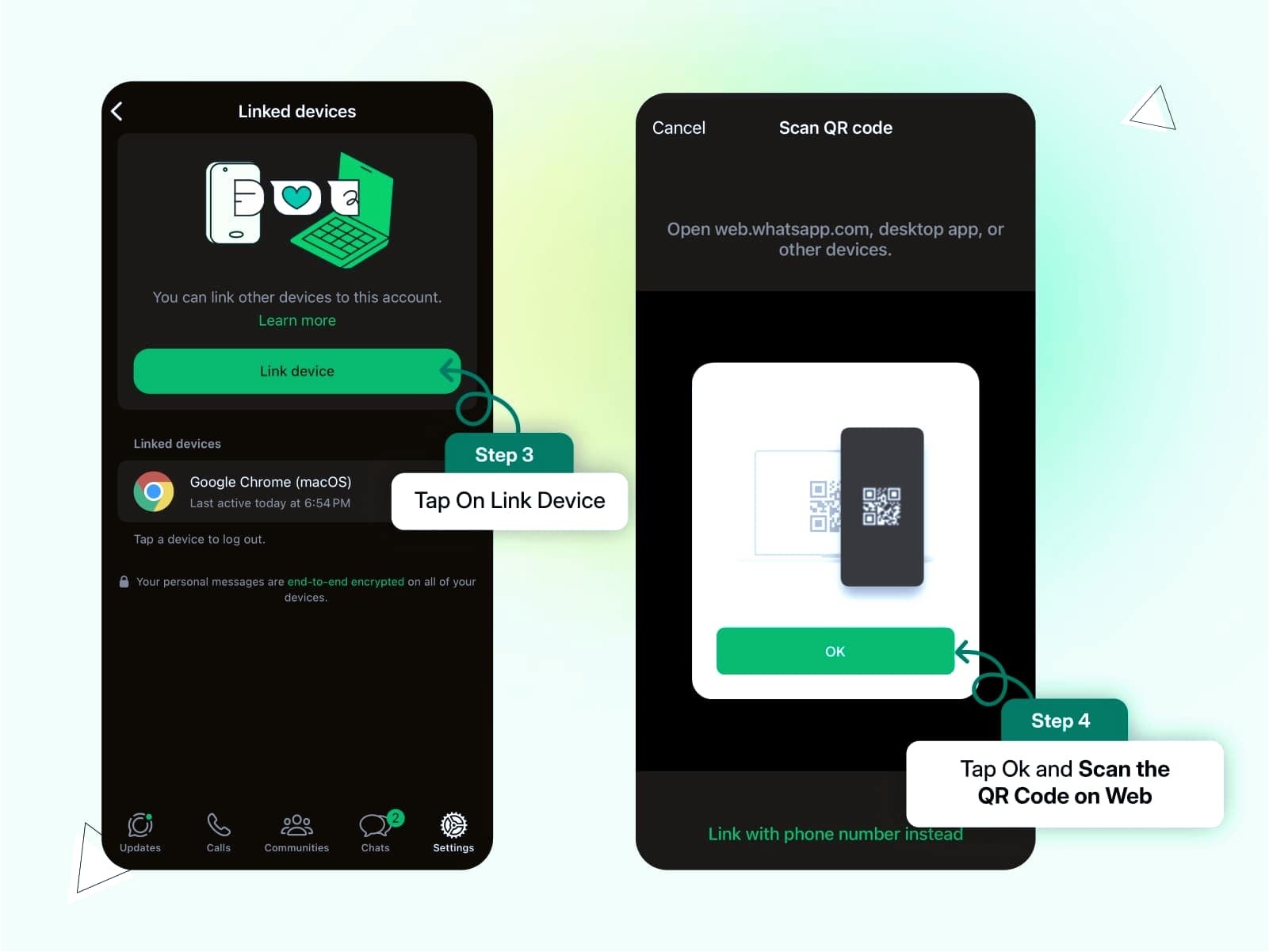
Use the WA backup feature
Restore from cloud backup
Check your backup settings: Before restoring, ensure that your chat history backup is enabled in the app settings. Navigate to WA > Settings > Chats > Chat backup, and confirm that a backup exists.
Reinstall the WA app: To initiate restoring, uninstall and then reinstall the WA app on your mobile device. Ensure that you have the same number registered with WA for the restoration process.
Follow restoration prompts: Open the app, and you will see prompts to restore your chat history from the cloud backup. Simply click ‘Restore,’ and your previous correspondence will be recovered.
Restore from local backup
Locate your local backup: WA automatically creates local backups every day. Check the storage of your device to find these backups, typically stored in the WA > Databases folder.
Use a file manager: Open a file manager app and navigate to the WA Databases folder. Identify the most recent backup file, which usually has a name format like msgstore-YYYY-MM-DD.1.db.crypt
Rename and restore: Rename the backup file to ‘msgstore.db.crypt12.’ Next, uninstall WA and reinstall it. During the setup, when prompted, select the option to restore from the local backup.
Use the chat export feature
Export individual chats
Open the chat for export: Go to your chat history, select the specific chat you wish to export. Tap on the contact or group name at the top to access chat info.
Select export option: Scroll down and select the ‘Export Chat’ option. You’ll have the choice to export with or without media files. Choose your preference to continue.
Choose where to save: Select an application to send or save the exported chat (e.g., email, cloud storage). The chat will be sent as a text file, allowing you to retain a record of your conversation.
Export chat backup
Back up all chats: In the chat settings, navigate to the ‘Chat Backup’ section and select ‘Back Up’ to create a complete backup of all your conversations.
Access backup files on device: Once the backup is complete, access your device’s storage to locate the backup file. Further file management may be necessary to organize and store this data securely.
Storage checking: Ensure that your chat backups are secure and easily accessible for future reference, ideally syncing them with cloud services for added safety.
Use third-party recovery tools
Install a recovery application
Choose a reputable recovery app: Research and select a reliable data recovery tool designed for retrieving lost WA messages. Popular recovery apps include Dr.Fone, EaseUS, and Tenorshare UltData.
Connect your device: Install the recovery application on your computer. Connect your smartphone to the computer using a USB cable, and ensure that debugging mode is enabled on your phone.
Run the recovery process: Follow the on-screen instructions provided by the recovery tool; the app will scan for lost data, including deleted chats, and present it for recovery.
Restore through the app interface
Open recovery app: Launch the installed recovery application on your computer. Familiarize yourself with the interface to optimize the recovery process.
Begin deep scan: Start a deep scan, which will take longer but provide extensive data recovery options, including deleted chat histories. Select and recover found chats: After the scan completes, browse through the found messages, select the relevant conversations, and follow the prompts to restore them back to your WA web.
Request help from WA support
Contact WA customer support
Navigate to the help section: Open the WA app, and go to Settings > Help > Contact Us. This feature allows you to send messages directly to the support team.
Describe your issue clearly: Provide detailed information about your lost chat history. Mention any troubleshooting steps you’ve previously attempted to facilitate quicker assistance.
Wait for response: After submitting your request, keep an eye on your email or app notifications for a response from the WA support team, who may provide tailored solutions to your issue.
Utilize FAQ and help documentation
Visit the official WA help center: Access the WA website or app for a comprehensive FAQ section. Carefully read through the documentation regarding chat recovery.
Find relevant issues: Use search terms like “restore chat history” or “lost messages” to discover articles that can guide you through potential solutions tailored to your problem.
Implement suggested actions: Follow the advice or steps outlined in the help articles, which may offer quick fixes or clarifications on how to recover your lost chats.
WA Web common questions
What should I do if my backup failed?
If your backup fails, check your internet connection, ensure there’s sufficient storage space, and confirm that the backup settings are enabled. Restart the app and retry the backup.

Can I recover deleted messages without a backup?
Recovering deleted messages without a backup is challenging. However, some third-party recovery tools may help, albeit results are not guaranteed.
| Method | Description | Steps | Success Rate | Notes |
|---|---|---|---|---|
| Cloud Backup | Restore chat history from cloud storage. | Check settings, reinstall app, follow prompts. | High | Requires backup setup beforehand. |
| Local Backup | Retrieve messages from local device storage. | Find backup file, rename, reinstall app. | Moderate | Daily backups are created automatically. |
| Chat Export | Export important chats to save them externally. | Open chat, select export option. | High | Individual chat export only. |
| Recovery Tools | Use third-party apps for data recovery. | Install app, connect device, run recovery. | Variable | Results may vary based on software used. |
| Contact Support | Reach out to WA support for assistance. | Navigate to help section, submit issue. | Good | Response times may vary. |
“`
How often does WA create backups?
WA usually creates backups daily at a specified time if you have enabled the backup settings. Ensure you check and adjust these settings according to your preference.
Restoring chat history on WA web is feasible through multiple methods, from utilizing backup features to seeking help from WA support. By following these strategies, you can ensure your important messages remain preserved and accessible whenever needed. The guidance provided here will empower users to confidently navigate the recovery process, tailoring actions based on individual situations and preferences.
Before restoring your chat history on WA web, ensure your backup settings are properly configured in the app. This will help you efficiently recover lost messages with minimal hassle.
Backup Options
Easily restore chats using cloud or local backup features.
Chat Export
Export individual chats to ensure you retain important messages.
Recovery Tools
Utilize third-party apps for advanced chat recovery solutions.
Support Access
Contact WA support for tailored assistance with chat recovery.
FAQs Available
Access a comprehensive FAQ section for common issues and solutions.
Data Security
Ensure your chat history is securely backed up and easily recoverable.